What Copilot helps with
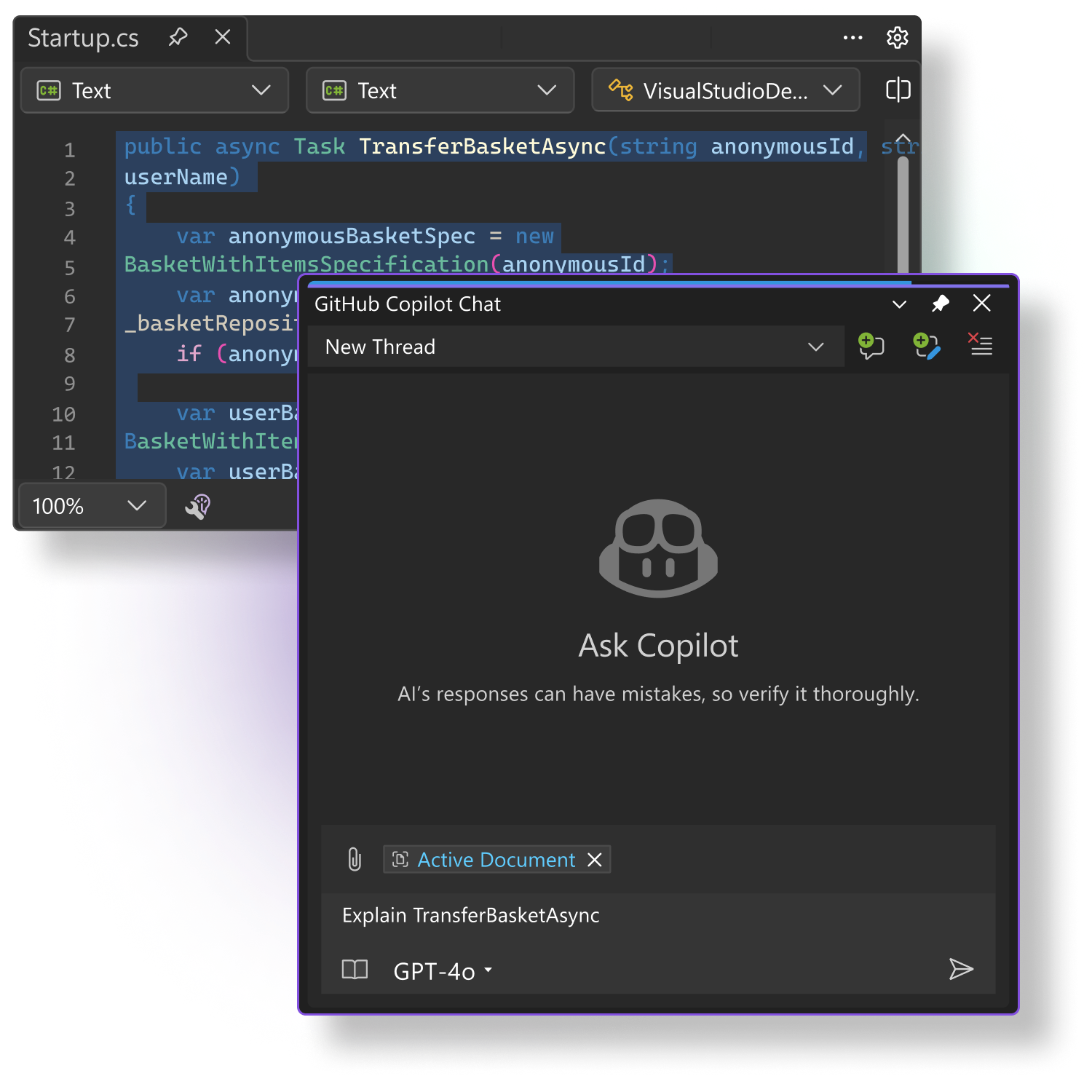
- Explain code blocks in context.
- Generate or refine unit tests.
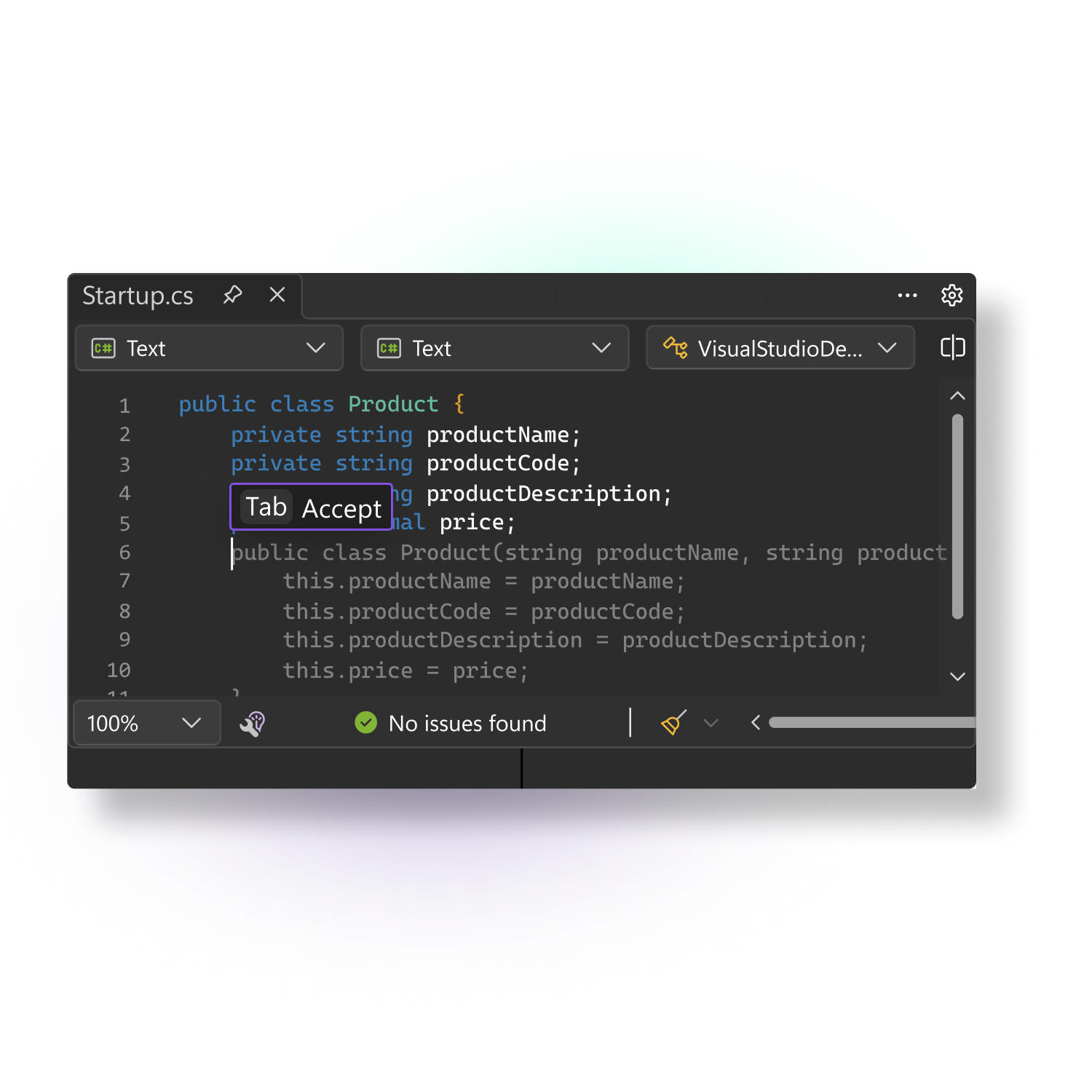
- Suggest small edits in the editor.
- Help debug exceptions and patterns.
- Draft commit messages and summaries.
- Answer questions about the code you have open.
- Assist with multi-file changes in chat.
- Support more guided work through agent mode.
How to start
Visual Studio Copilot works best when you set it up once, then use it as part of your normal build and debug loop. The starting point is simple: GitHub account, Copilot access, Visual Studio sign-in, and the chat window.
- Have a GitHub account with Copilot access.
- Open Visual Studio 2022 with Copilot support enabled.
- Sign in to Visual Studio with the same GitHub account.
- Open Copilot Chat from the IDE and start with one file or one issue.
- Use inline chat when you want changes in the current file.
// First prompt pattern
You are in this project.
I want to understand this file first.
Explain the main flow, point out risks, and tell me what to change safely.
Visual Studio screenshots
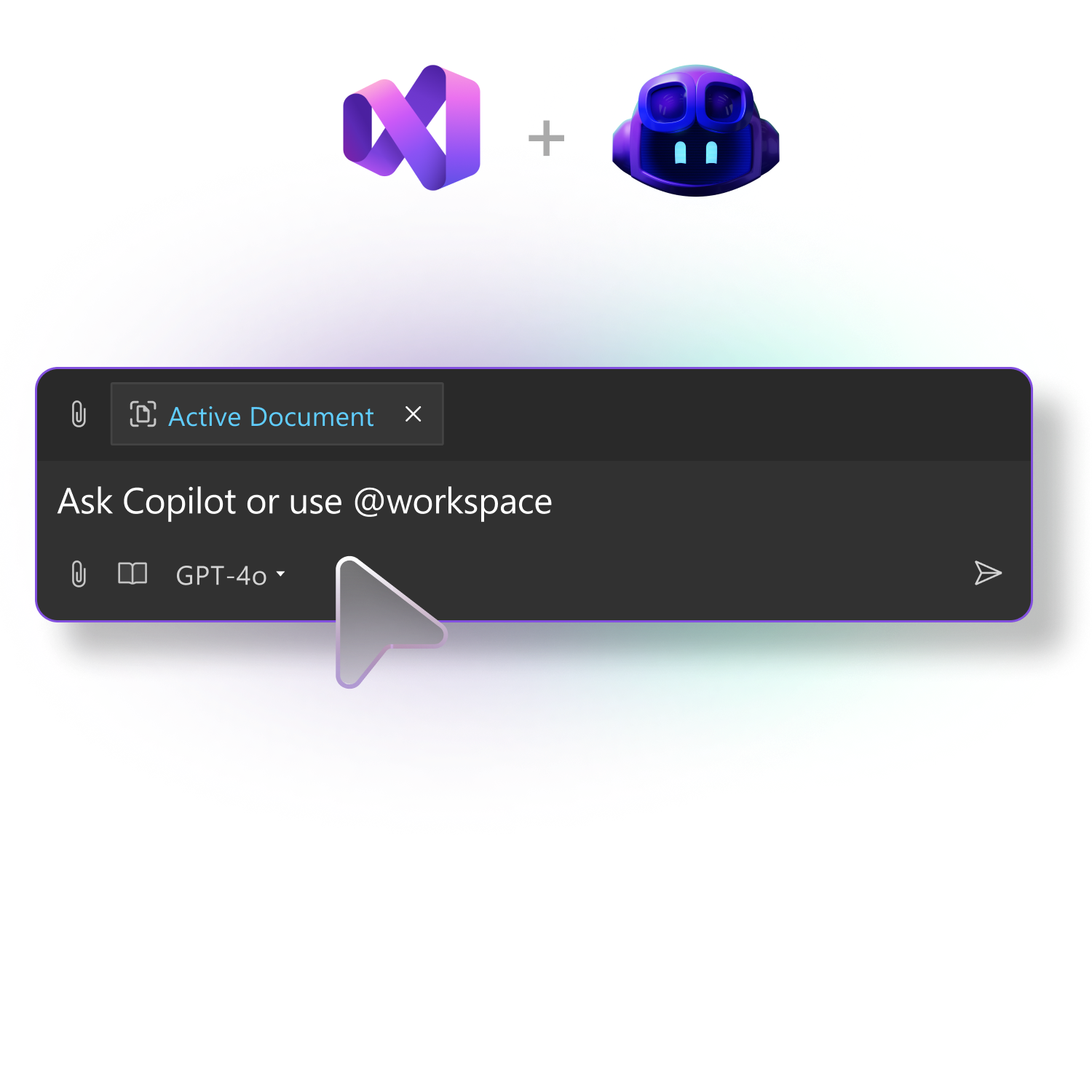
These images come from the Copilot walkthrough assets bundled with Visual Studio. They show the same workflow this article explains: get started, chat with Copilot, and use completions while you code.
Copilot files that matter
GitHub Copilot becomes more useful when you give it stable instructions and reusable prompts in the repository itself. The key files are one global instruction file, optional path-specific instruction files, and reusable prompt files.
| File | Use for | What it gives you |
|---|---|---|
.github/copilot-instructions.md |
Repository-wide rules | Default behaviour Copilot should follow for the whole repo. |
.github/instructions/*.instructions.md |
Path-specific rules | Different guidance for SQL, APIs, DevOps, or any folder/area that needs its own standards. |
.github/prompts/*.prompt.md |
Reusable prompts | Saved task prompts for review, tests, performance, debugging, and feature work. |
- Use the repository instruction file for global rules.
- Use path-specific files when different folders need different behaviour.
- Use prompt files for repeatable tasks you will run again and again.
# Good repo-level instruction
- keep changes minimal
- preserve public contracts
- use the existing logging style
- do not add packages without approval
How a .md file is created
A `.md` file is a Markdown text file. In Visual Studio, you usually create it the same way you create any new file: add a new item, name it with the `.md` extension, then start writing in plain text using Markdown syntax.
- Choose the folder where you want the file to live.
- Add a new text file or markdown file.
- Name it something meaningful such as `copilot-prompts.md` or `project-notes.md`.
- Write headings, lists, code blocks, and links using Markdown syntax.
- Use Copilot to draft the first version, then review and clean it up.
# Copilot Prompt Notes

## Goal
Create safe, reusable prompts for Visual Studio.

## Rules
- Keep prompts short.
- Add context.
- Ask for one task at a time.
Features of a good .md file
A good Markdown file is easy to scan, easy to update, and easy for Copilot to use as context. It should read like a structured note, not like a wall of text.
| Feature | Why it matters | Example |
|---|---|---|
| Clear headings | Let you jump to the right section quickly. | `## Prompt template`, `## Debugging`, `## Notes` |
| Short sections | Keep the file readable and maintainable. | One idea per section, not ten mixed ideas. |
| Code fences | Keep prompts and examples easy to copy. | Use triple backticks around commands and prompts. |
| Lists and checklists | Make steps obvious. | Checklist for setup, prompt reuse, and review. |
| Examples | Show the exact shape of a good prompt. | One bad prompt and one improved prompt. |
| Consistent naming | Helps you reuse the file later. | `prompt-library.md`, not random names. |
Generating and reusing the best prompts
The best prompts are rarely one-off sentences. They are templates. You create them once, refine them after a real use case, then reuse the same structure with new context.
- Start with a short prompt and a specific goal.
- Use Copilot to improve the wording and coverage.
- Save the prompt in a Markdown file.
- Keep a few versions if different tasks need different styles.
// Reusable prompt template
You are working inside this Visual Studio solution.
Explain the file first.
List risks.
Suggest the smallest safe change.
Then generate tests.
Scope your prompt correctly
Prompt scope matters. A file-level prompt is ideal for local edits. A project or solution level prompt is better when the change spans services, tests, or shared contracts.
| Scope | Best use | Example | Risk if overused |
|---|---|---|---|
| File | One class, method, or view. | Refactor a controller or fix one helper. | Misses project-wide impact if the change is broader. |
| Project | All code in one project. | Update a service project and its tests together. | May miss shared dependencies outside the project. |
| Solution | Changes across multiple projects. | Modify an API contract and every consumer. | Can be too broad if the task is simple. |
| Workspace | Broad guidance across the entire codebase. | Find where a business rule is used in the app. | Too much context can make the answer less precise. |
Rule of thumb: use the smallest scope that still contains the full change. Expand only when the fix clearly crosses boundaries.
Best practices in prompting
The best Copilot prompts are specific, scoped, and outcome driven. If you tell it what success looks like, it can usually do a much better job than if you only ask for a generic fix.
| Technique | What to say | Why it helps |
|---|---|---|
| State the goal | “Explain this controller and reduce duplicate logic.” | Gives Copilot a single target instead of guessing your intent. |
| Give context | “This is a .NET Web API project with EF Core and xUnit.” | Helps it choose better assumptions and patterns. |
| Set constraints | “Do not change public behavior. Keep the current API contract.” | Protects existing callers and reduces accidental regressions. |
| Ask for format | “Return a short plan first, then the code changes.” | Makes the answer easier to review before code is produced. |
| Work in steps | “First explain, then propose the fix, then generate the patch.” | Prevents the model from jumping straight into large edits. |
Different Copilot modes in detail
Copilot has different modes for different jobs. The right choice depends on whether you are exploring, editing one file, or asking it to carry out a multi-step change.
Chat window
- Best for explanation, planning, and comparing options.
- Use it when you do not want to edit code yet.
- Ask for reasoning, risks, and next steps first.
Inline chat
- Best for local edits in the file you already opened.
- Use it when the change is narrow and mechanical.
- Good for refactors, cleanup, and small fixes.
Agent mode
- Best for multi-step work that touches more than one file.
- Useful when the task has sequence, dependencies, and review points.
- Works well for “analyze, change, test, summarize” workflows.
Review mode
- Use it after the change is generated.
- Check the diff, test the code, and confirm behavior.
- Never skip this step when the output affects production code.
Ask, Edit, Agent at a glance
Keep the mode simple: Ask to understand, Edit to change with control, Agent to let Copilot carry out a larger sequence. The more sensitive the code path, the smaller the scope and the lower the autonomy should be.
| Mode | Best use | Keep in mind |
|---|---|---|
| Ask | Explain code, trace flow, investigate risk. | No code changes yet; use it for understanding and planning. |
| Edit | Controlled edits to selected files. | Best when you know the files and want a focused change. |
| Agent | Multi-step work across files. | Use only when the task is clear and you can validate the result. |
Generating and reusing the best prompt for further development
Once you find a prompt that works, turn it into a development template. That template should help with future feature work, debugging, refactoring, and testing without rewriting the whole instruction every time.
- Store your best prompts in a Markdown file.
- Keep prompts grouped by task type: explain, refactor, test, debug, compare.
- Update the template after each real delivery if the answer quality improves.
- Keep a “starter prompt” and a “deep dive prompt” for the same task.
// Reusable prompt template
You are working in a Visual Studio solution.
First explain the current code.
Then identify the smallest safe improvement.
Then generate the updated code and tests.
Do not change behavior unless I ask for it.
Optimize token usage
If you want better answers, do not overload the prompt. Give Copilot only the context that matters. Smaller prompts with the right files often work better than large prompts with everything pasted in.
| Do this | Why | Avoid this |
|---|---|---|
| Summarize the problem before showing code. | Reduces noise and keeps the task focused. | Pasting the whole project when one file is enough. |
| Ask for one task per prompt. | Keeps the answer smaller and easier to verify. | Mixing refactor, tests, docs, and architecture in one request. |
| Share only the relevant file or method. | Improves signal-to-noise for the model. | Dumping logs, code, and screenshots all at once without a filter. |
| Ask for a summary first if the issue is broad. | Helps you narrow the scope before generating code. | Jumping straight into large rewrites. |
Practical prompt patterns for future development
For real delivery work, the prompt should stay reusable. The best pattern is to state the task, give context, list constraints, and ask for a safe output format. That makes the prompt useful again the next time a similar feature appears.
- State the task in one sentence.
- Add the exact file or area if you know it.
- List what must not change.
- Ask for a structure: plan, code, tests, summary.
// Good reusable development prompt
You are working in this Visual Studio solution.
Change only the service layer for this feature.
Keep the current API contract unchanged.
First give me a short plan, then code, then tests.
How I used it in .NET delivery work
- I ask Copilot to explain legacy code before I touch it.
- I use inline chat for small file-level changes.
- I use the chat window when the question is broader than one file.
- I use agent mode when I want a guided multi-step change.
// Example prompt style
Explain this controller, suggest test cases,
refactor it to reduce duplicate logic,
and keep the existing API behavior unchanged.
Practical Copilot prompts
- Explain this method and identify risks.
- Generate unit tests for this service.
- Refactor this code without changing behavior.
- Help me understand this exception and suggest a fix.
- Create a safe alternative version in a new file so I can compare it.
Delivery rules I kept
- Never merge Copilot output without reading it first.
- Keep architecture calls with humans, not the tool.
- Use Copilot for speed, but keep tests and checks in place.
- Ask for the exact file or feature you want changed, not a vague goal.
- Prefer small verified changes over big unreviewed rewrites.
Why this matters
Copilot is most useful when it fits the way you already work in Visual Studio. That means faster explanation, better test coverage, quicker refactoring, less time spent on repetitive editing, and a clearer path from idea to safe change.
References
- Visual Studio Copilot walkthrough assets bundled with the IDE: `Get Started with Copilot Free`, `Chat with Copilot`, and `Code with Copilot Completions and Next Edit Suggestions`.
- Visual Studio Copilot walkthrough content for instructions and prompt files, including `copilot-instructions.md` and `.github/prompts`.
- Visual Studio Copilot walkthrough content for agent mode and MCP usage.